
Configure Screen Information
- Enter the basic screen information as required.
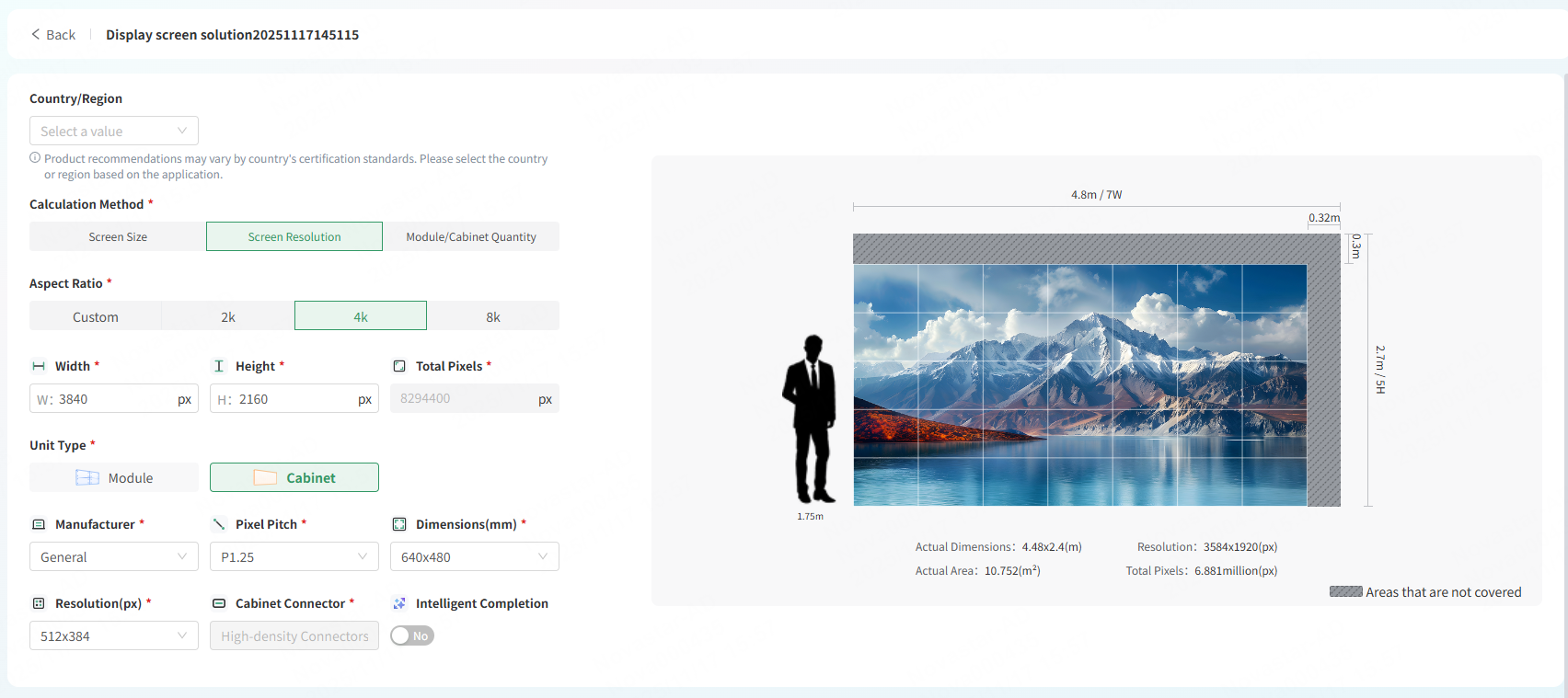
- Country/Region: Select a country/region.
Product recommendations may vary by country's certification standards. Please select the country or region based on the application.
- Calculation Method: Selec t a calculation method: The options include Screen Size, Screen Resolution, and Module/Cabinet Quantity.
Screen Size: Specify the aspect ratio, width (m), height (m), and total area (m²).

Screen Resolution: Specify the aspect ratio, width (px), height (px), and total number of pixels (px).

Module/Cabinet Quantity: Specify the number of modules/cabinets in the horizontal and vertical directions and total number of modules/cabinets.

Notes:
-When Screen Size or Screen Resolution is selected as the calculation method, you can specify an aspect ratio or resolution for quick settings.
-When an ultra-long screen configuration is detected, the ultra-long screen calculation solution will be enabled.
- Unit Type: Select a unit type. The options include Module and Cabinet.

- Manufacturer: Select a manufacturer (including General and Specified Manufacturer) and pixel pitch.
- General: After this option is selected, choose a pixel pitch as needed.
- Specified Manufacturer: After this option is selected, enter a manufacturer name and select a product model.
- Pixel Pitch: Select a preset pixel pitch or set a custom pixel pitch.
Note: Custom pixel pitch is supported when Cabinet is selected as the unit type.
- Connector: Select the connector of the module/cabinet.
- Dimensions: Select the dimensions of the module/cabinet.
- Resolution: Select the resolution of the module/cabinet.
- Mosaic Module Dimensions: Set the mosaic module dimensions. This parameter can be set when Custom is selected as Pixel Pitch.
- Mosaic Module Resolution: Set the mosaic module resolution. This parameter can be set when Custom is selected as Pixel Pitch.
- Mosaic Module Quantity: Set the mosaic module quantity. This parameter can be set when Custom is selected as Pixel Pitch.
- Intelligent Completion: This feature can be enabled when the Unit Type is set to Cabinet. Once the feature is enabled, the screen can be automatically filled with cabinets according to the rules, with the real-time preview colors varying according to different cabinet specifications.
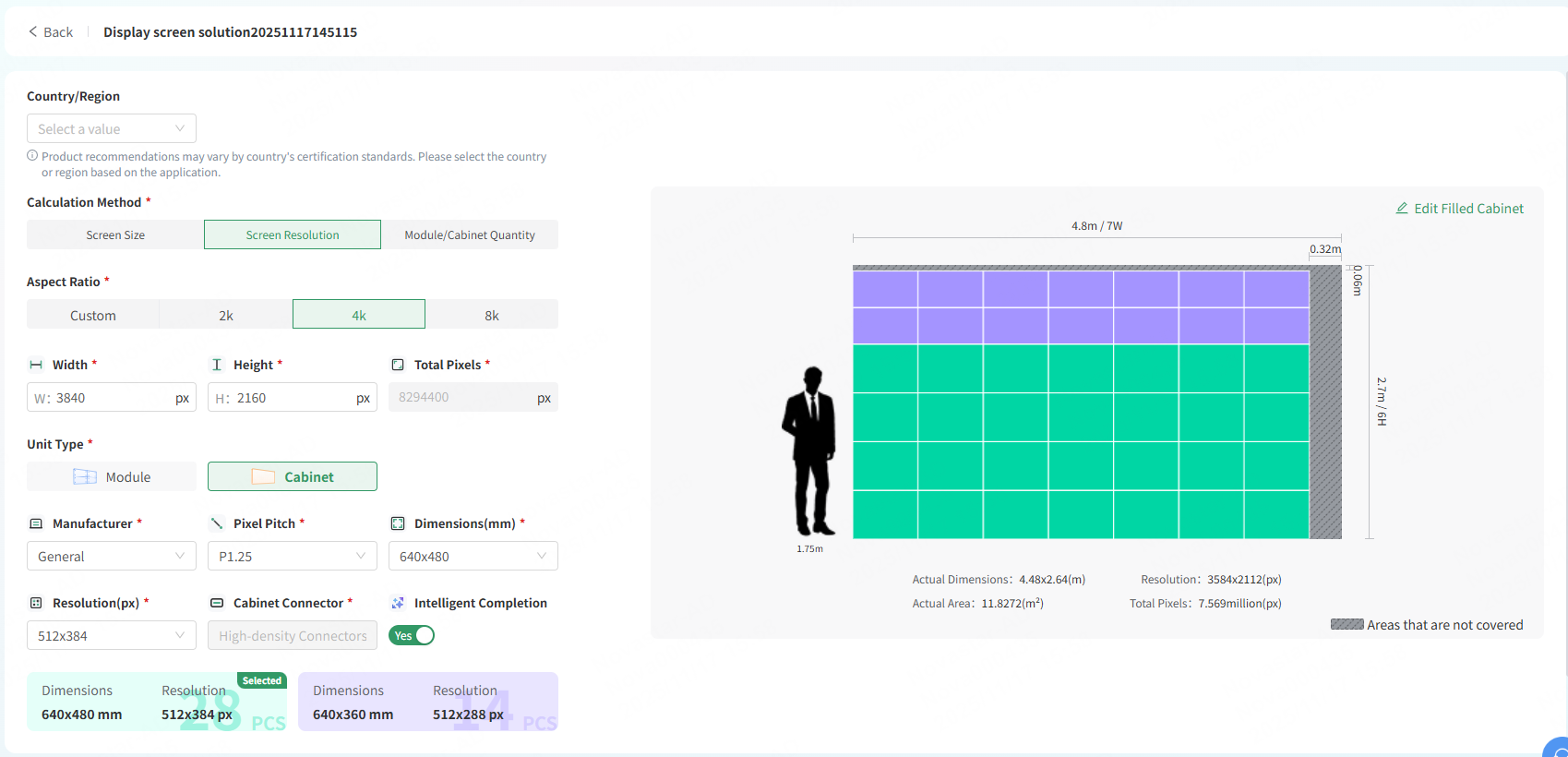
Click Edit Filled Cabinet to open the Edit Cabinet window, where you can edit selected cabinets, cabinets aligned horizontally or vertically, and the cabinet at the angle.
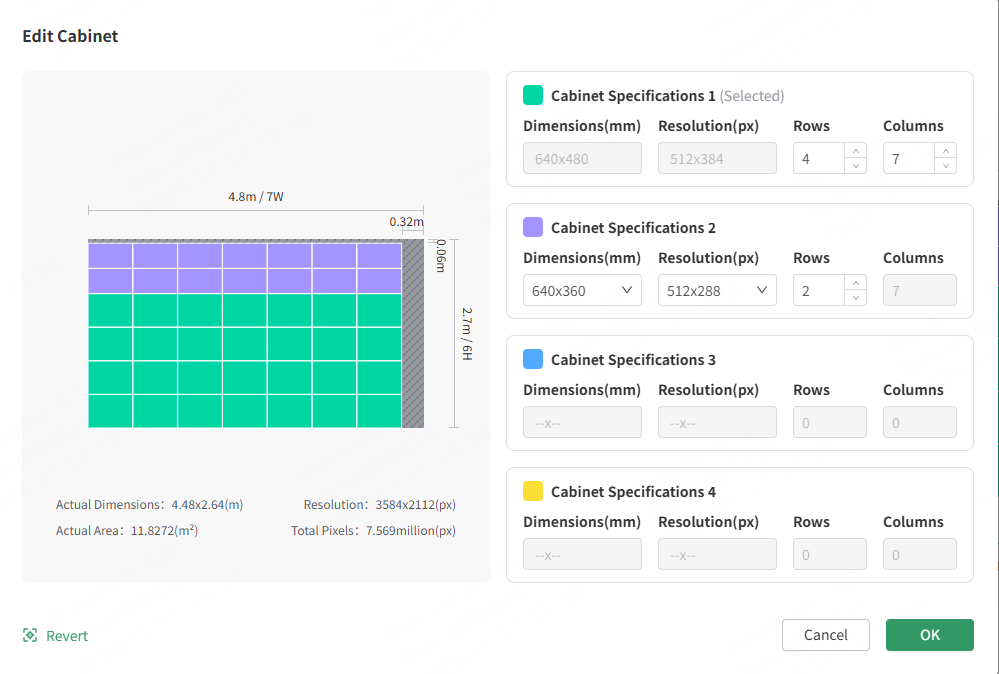
- Selected cabinets: The model cannot be changed. The number of rows and columns can be changed.
- Cabinets filled horizontally (top/bottom): The cabinets can be replaced with other cabinets (the width of a single cabinet must match the width of the selected cabinet). The number of rows can be changed.
- Cabinets filled vertically (right side): The cabinets can be replaced with other cabinets (the width of a single cabinet must match the width of the selected cabinet). The number of columns can be changed.
- Cabinet at the angle: The cabinet cannot be changed and is generated automatically by the system.