Set Advanced Configuration
In the Advanced Configuration area, set advanced configuration.
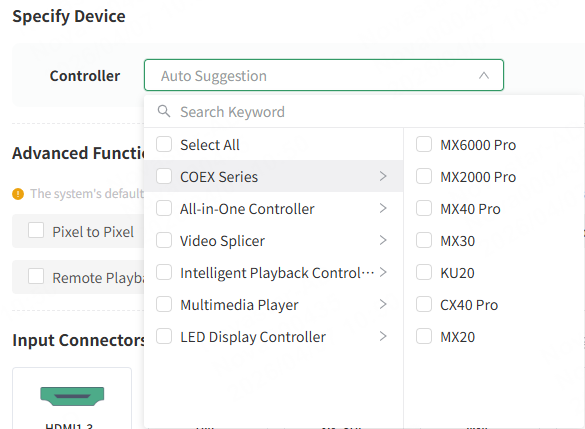
- Select the specified device. You can select the device from the drop-down list or search for the device by name.
Notes:
-The selectable controller models depend on the configured screen information.
-The ultra-long screen solution calculation is only applicable to asynchronous players and all-in-one video controllers. If the system cannot generate a solution based on these devices, it will automatically switch to the standard solution.
- Select advanced functions as required, including pixel to pixel, video source preview, long-distance transmission, multi-layer, frame frequency, bit depth, USB playback, active shutter 3D, HDR, remote control, and 5G transmission.
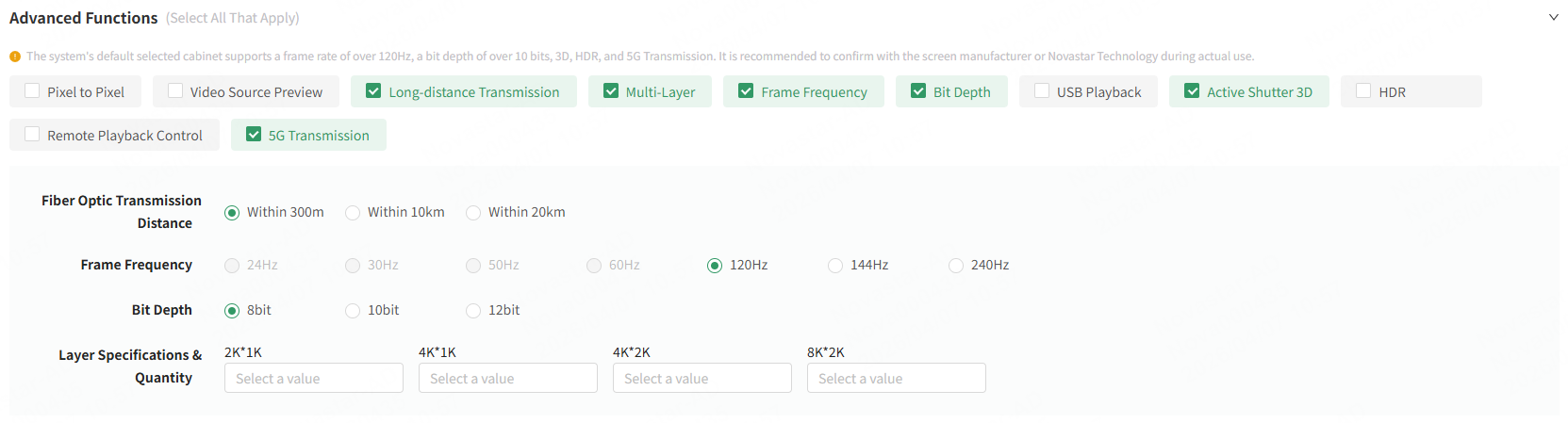
- If long-distance transmission is selected, specify the transmission distance.
- If multi-layer is selected, specify the specifications and quantity of layers.
- If frame frequency is selected, specify a frame frequency.
- If bit depth is selected, specify the bit depth.
- To select 5G transmission, Cabinet must be selected as the unit type and the specified controller must support 5G transmission.
Notes: The advanced configuration is subject to the following limitations:
- If the selected unit type is Module, the frame rates of 144Hz and 240Hz are not allowed.
- If the receiving cards working with the modules or cabinets do not support HDR, 10bit, or 12bit, these options are disabled.
- If the selected unit type is Cabinet, a prompt will appear: "The system's default selected cabinet supports a frame rate of over 120Hz, a bit depth of over 10bit, 3D, and HDR. It is recommended to confirm with the screen manufacturer or NovaStar during actual use.”
- If the screen resolution exceeds 208 million pixels, the following options are disabled: frame rates (120Hz, 144Hz, 240Hz), active shutter 3D, and bit depth (12bit).
- If active shutter 3D is selected, the frame rate defaults to 120Hz, disabling 24Hz, 30Hz, 50Hz, and 60Hz.
- If HDR is selected, the bit depth defaults to 10-bit, disabling 8-bit.
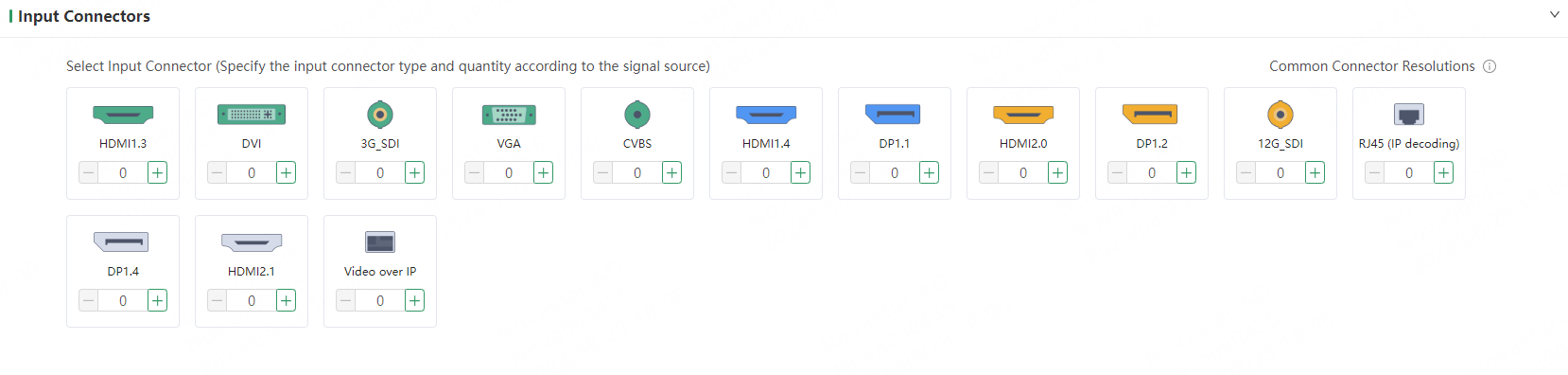
- Specify the types and quantities of input connectors according to the signal sources.
- Click Next to preview and confirm the solution.
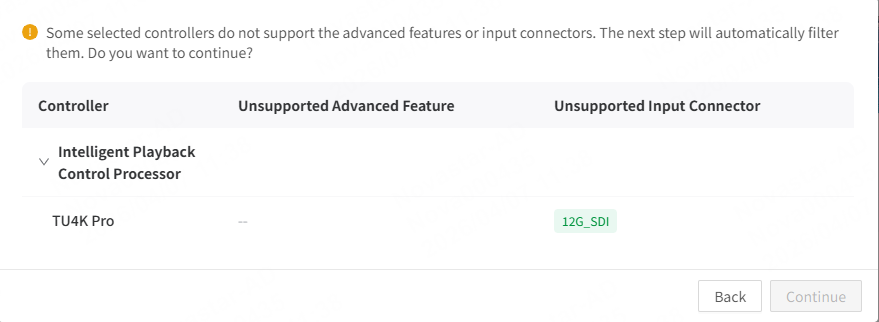
Note: When you specify devices, and select the relevant features and input connectors, the system will prompt you with a list of unsupported items if the devices do not support some of the selected advanced features or input connectors.
- If only some advanced functions are not supported, but the input connectors meet the requirements, you can still click Continue to proceed.
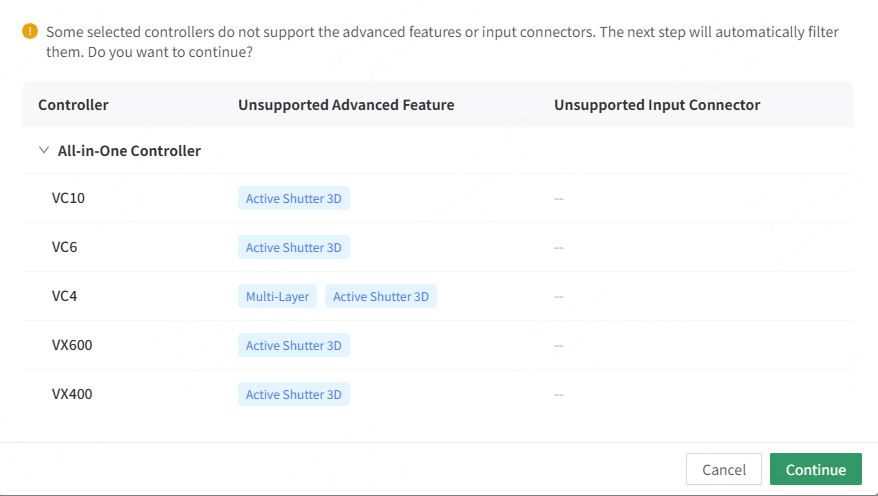
- If the input connectors do not meet the requirements, click Back to readjust the device configuration information.