
Personal Settings
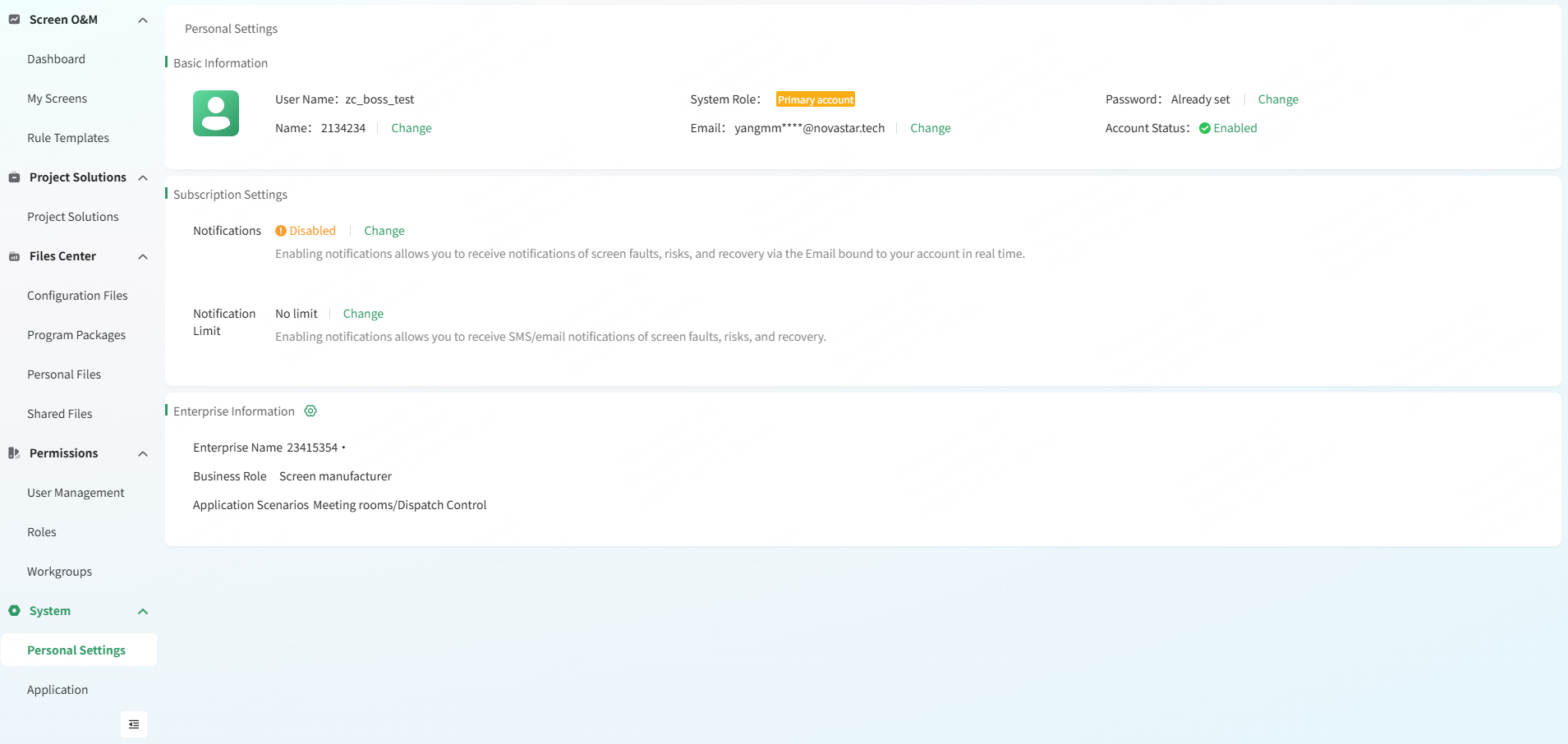
You need to log in to VNNOX Care using the admin (primary account). On the Personal Settings page, you can configure your personal information.
# Set Basic Information
- From the navigation bar on the left, choose System > Personal Settings to access the personal settings page.
- In the Basic Information section, you can set information such as your name, phone number, email address, and password.
# Subscribe Alarm Notifications
This section introduces how to subscribe to monitoring alarm notifications by binding an email address to your account.
- From the navigation bar on the left, choose System > Personal Settings to access the personal settings page.
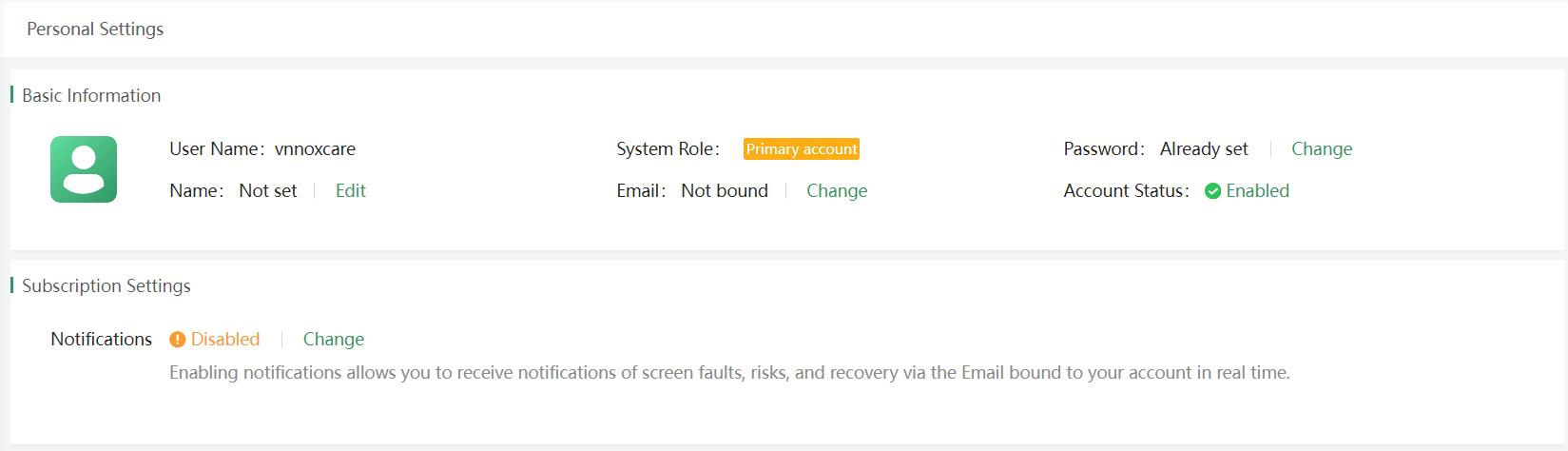
- In the Subscription Settings area, click Change to open the Enable Notifications window.
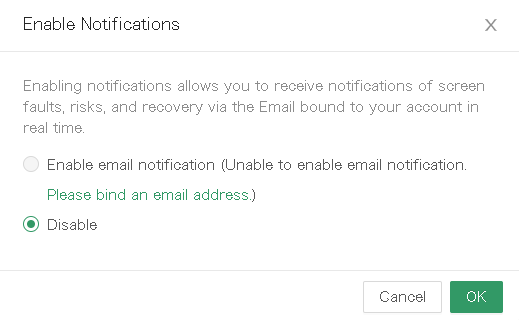
- Click Please bind an email address to open the Bind Email window.
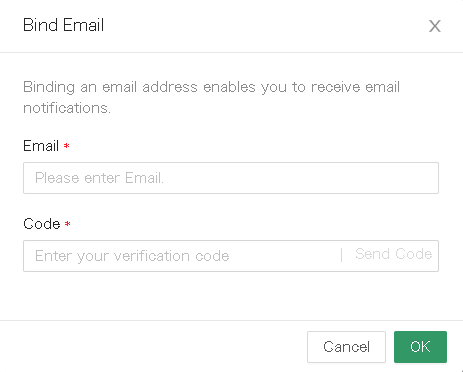
- Enter your email address and click Send Code to get a verification code.
- Enter your verification code and click OK to bind the email address to your account.
- Go back to the Enable Notifications window and select **Enable email notifications **to enable monitoring alarm notifications.
When your screen fails, a fault alarm email will be sent to you via the email address bound to your account in a timely manner.
- (Optional) After the settings are done, choose Subscription Settings > Notification Limit, click Change to set the maximum number of notifications in the Change Notification Limit window. After the settings are done, click OK.
# Enterprise Information
- From the navigation bar on the left, choose System > Personal Settings to access the personal settings page.
- In the **Enterprise Information **section, click
 to set the enterprise name, business role, and application scenarios in the Enterprise Information window that appears.
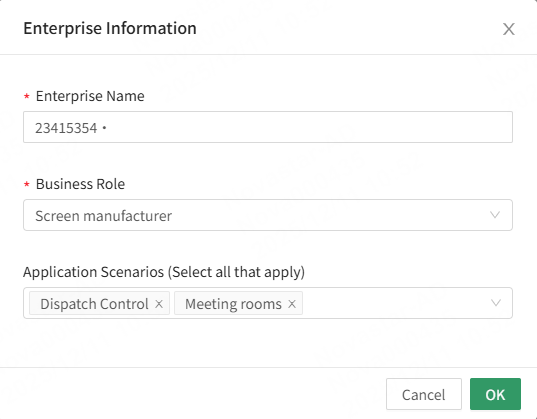
- After the settings are done, click OK.